Generative photo editing with Galaxy AI on your Samsung Galaxy
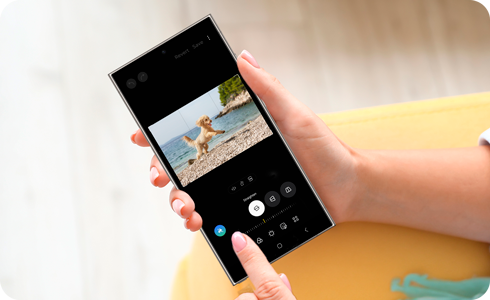
Generative photo editing with Galaxy AI on your Samsung Galaxy analyses an image and regenerates it as you resize, remove, or reposition objects. It also lets you expand photos, with AI automatically filling in the background and completing cut-off elements for a seamless editing experience.
Note:
- Make sure you are signed in to your Samsung account to use this feature.
- Images generated by AI include an AI watermark in the bottom-left corner.
- Available screens and settings may vary by wireless service provider, software version and device model.
Unlocking your creative potential with the intelligent photo tools presented in this article requires a Samsung Galaxy device running One UI 8. This version of One UI was first introduced with the Galaxy Z Fold7, Z Flip7, Z Flip7 FE, S25 FE, Tab S11 Ultra, and Tab S11. As the software update continues to roll out, more Galaxy devices will receive One UI 8, allowing even more users to explore intelligent photo editing features.

Here’s a list of devices that were released with One UI 8 or are expected to receive the update:
- Galaxy S phones: S25 FE, S25 Edge, S25 Ultra, S25+, S25, S24 Ultra, S24+, S24, S24 FE, S23 Ultra, S23+, S23, S23 FE, S22 Ultra, S22+, S22, and S21 FE
- Galaxy Z phones: Z Fold7, Z Flip7, Z Flip7 FE, Z Fold6, Z Flip6, Z Fold5, Z Flip5, Z Fold4, and Z Flip4
- Galaxy Tab S tablets: Tab S11 Ultra, Tab S11, Tab S10 Ultra, Tab S10+, Tab S10 FE+, Tab S10 FE, Tab S9 Ultra, Tab S9+, Tab S9, Tab S9 FE+, Tab S9 FE, Tab S8 Ultra, Tab S8+, and Tab S8
- Galaxy A phones: A56 5G, A54 5G, A53 5G, A36 5G, A35 5G, A26 5G, A25 5G, A16 5G, and A15 5G
You can resize, remove or reposition objects in photos, and Generative photo editing recreates the image in the most natural way.
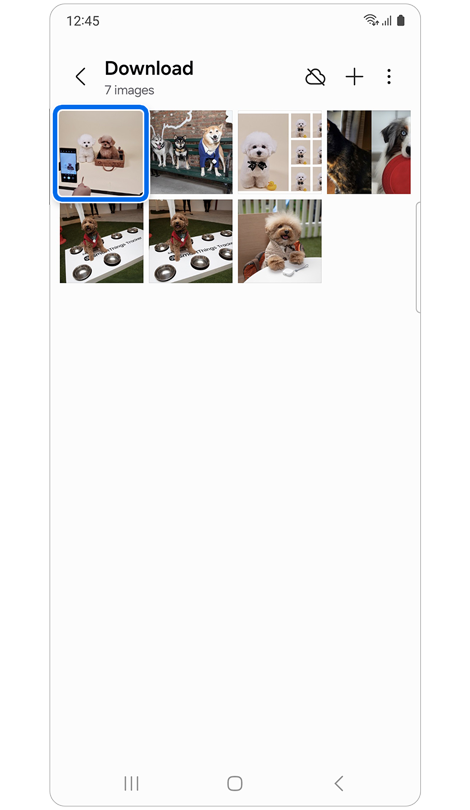
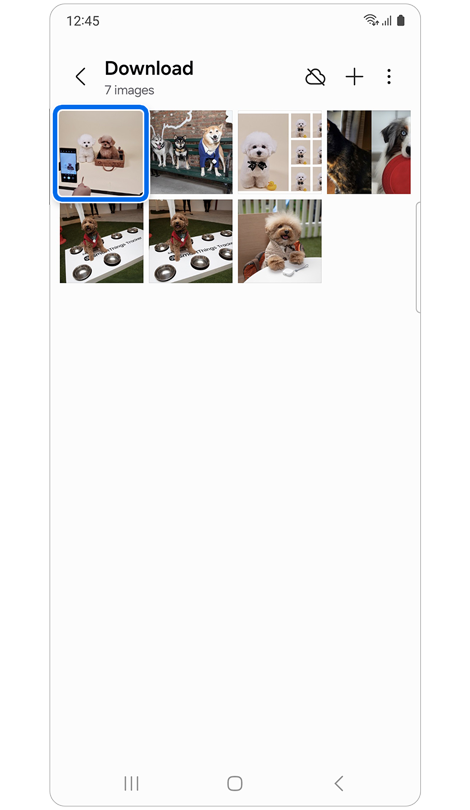
Step 1. Open the Gallery app > Select a photo.
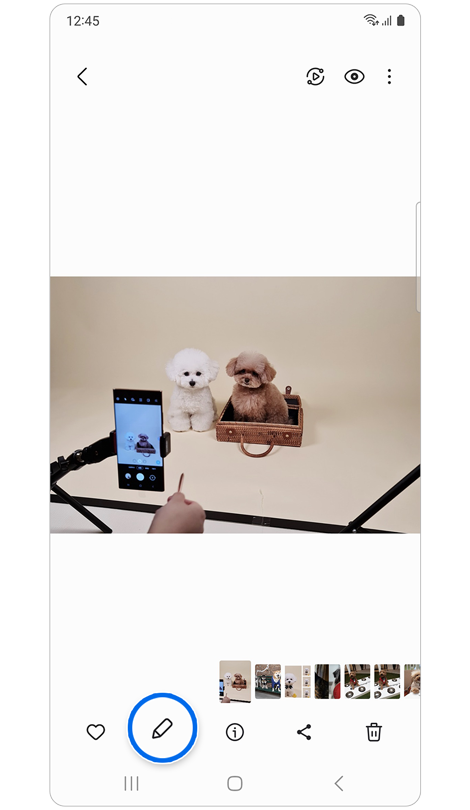
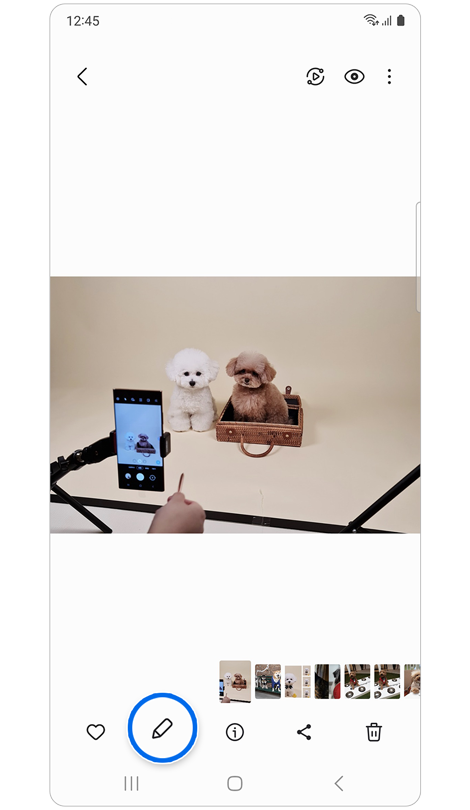
Step 2. Tap the Edit icon to enter editing mode.


Step 3. Tap the Generative edit icon.
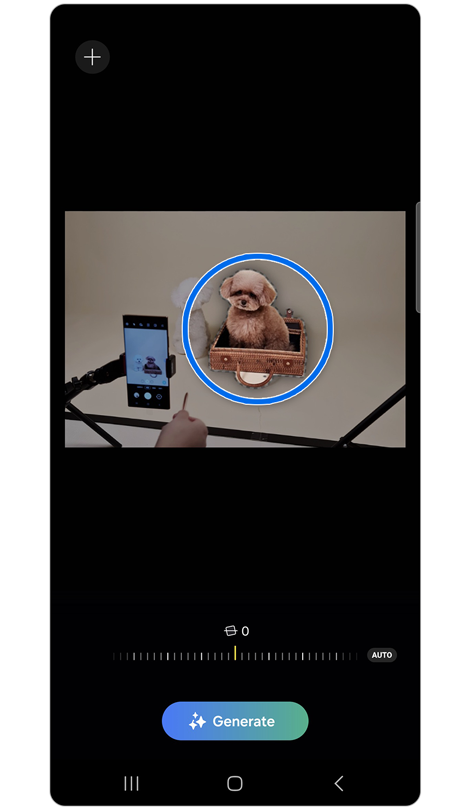
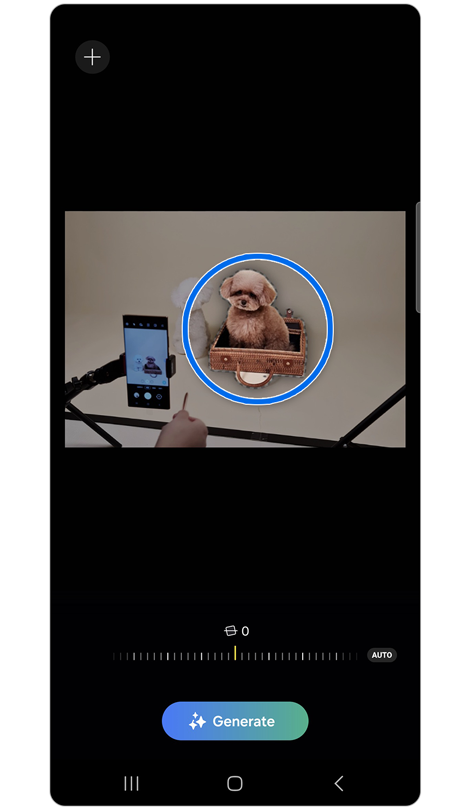
Step 4. Tap the object or draw a line around it to select an object.
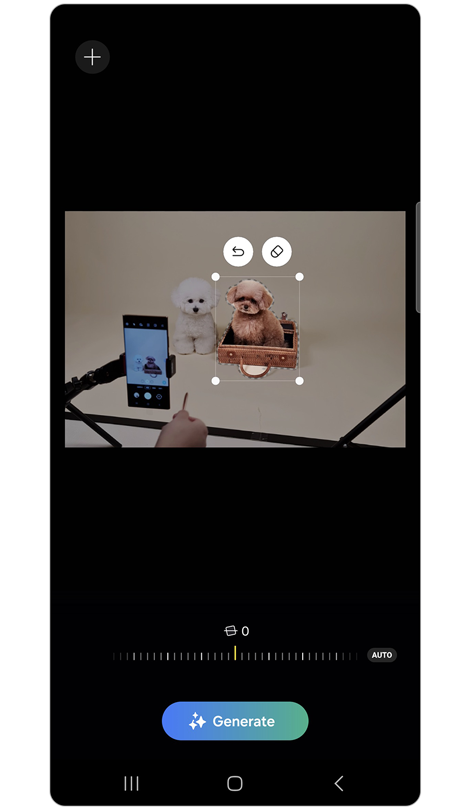
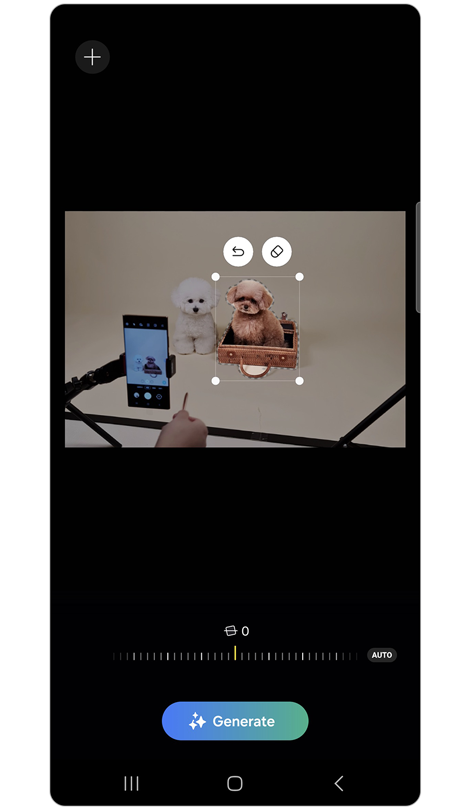
Step 5. You can delete, move, or resize objects by long-pressing on them.
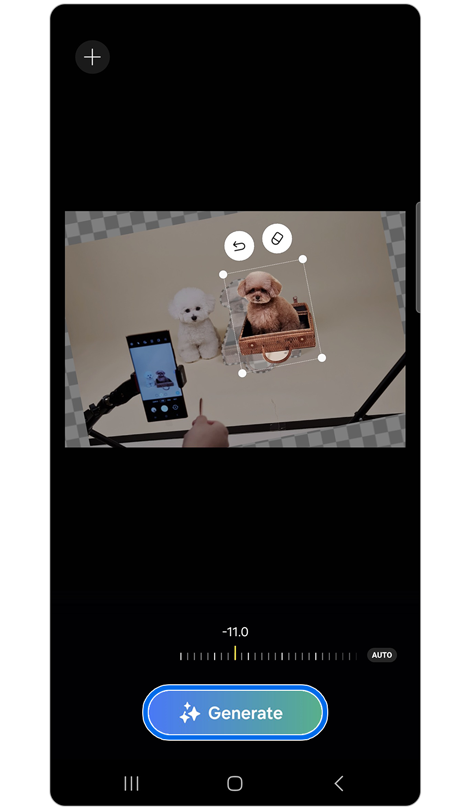
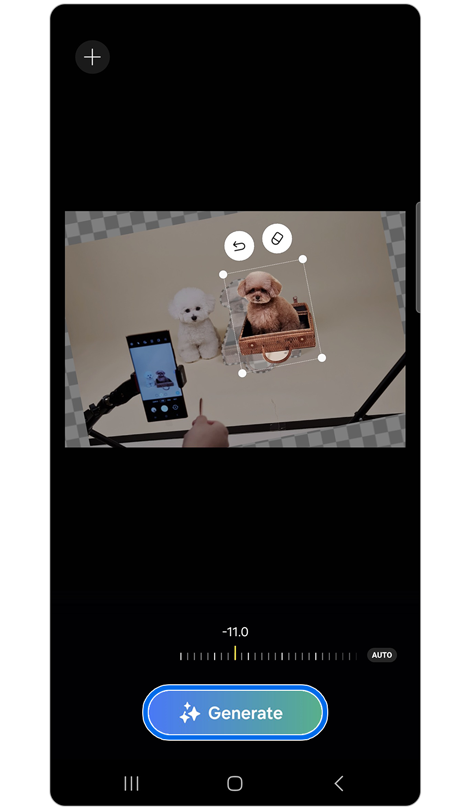
Step 6. Adjust the tilt lever to align images > Tap Generate.
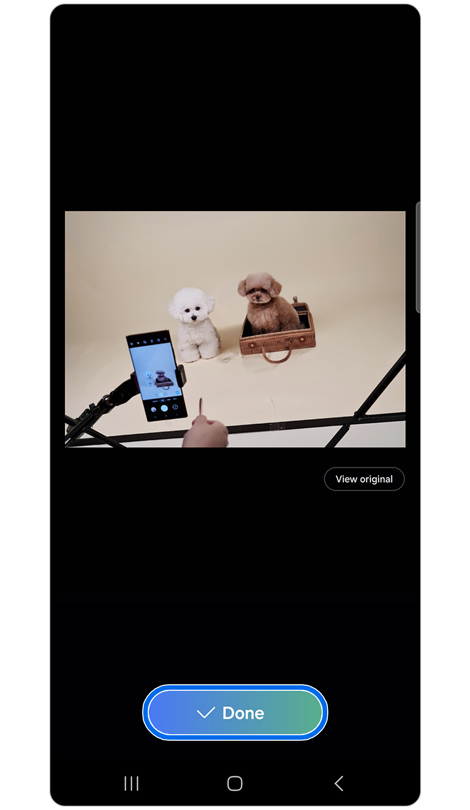
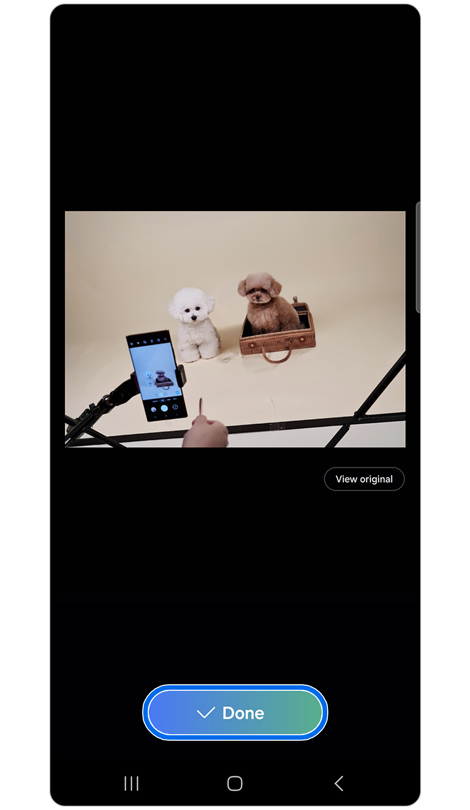
Step 7. Tap Done and save as a copy.
Note:
- Users can zoom out beyond the image borders, and Generative photo editing automatically fills the empty space.
- After an image is generated, Generative photo editing may suggest additional results to choose from.
- When using Generative photo editing, unintended objects or items may appear in the output. If the content is considered inappropriate, it may not be generated.
Additional resources:

Thank you for your feedback!
Please answer all questions.
RC01_Static Content : Hide call number function