Galaxy Themes是甚麼?

最後更新日期 : 2026年1月8日

重要提醒:此頁面的資訊只適用於香港產品。產品型號、畫面序列或設定會根據您所在地區及/或購買產品的地區而不同。請按此跳轉至您所在地區的服務支援頁面。

Galaxy Themes可以讓用家簡易下載不同的主題、圖示等設計,並在手機中使用這些設計。Galaxy Themes的設計元素包括了由螢幕牆紙、圖示、訊息至電話通話的介面,增加美感的一致性,令實用度與美感同時兼備。
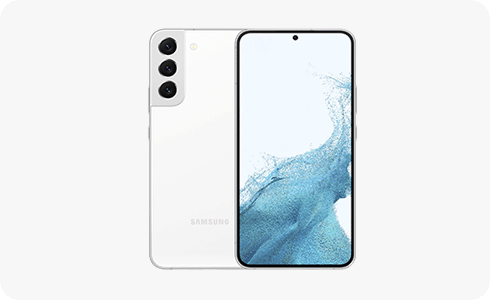
View of the S22 with a Theme being displayed.

兼容Galaxy Themes的裝置

Galaxy Themes支援於Samsung 流動裝置:Galaxy S6或之後生產的型號,並支援HD或更高的解像度。

如何在Samsung 流動裝置中應用Galaxy Theme?

請先在Galaxy Themes中下載主題,再應用主題。

Step 1. Long press on the home screen. Step 1. Long press on the home screen.

步驟1. 在Galaxy裝置的主螢幕中,長按1至2秒。

Step 2. Tap the “Themes” icon, second on the left, at home screen. Step 2. Tap the “Themes” icon, second on the left, at home screen.

步驟2. 點選「主題」。

Step 3. Select an item from the list. Step 3. Select an item from the list.

步驟3. 揀選喜愛的主題。

Step 4. Select the “Download” button at the bottom of the screen. Step 4. Select the “Download” button at the bottom of the screen.

步驟4. 點選「下載」/「免費」。

Step 5. Select “Apply” button at the bottom of the screen. Step 5. Select “Apply” button at the bottom of the screen.

步驟5. 按「應用」。

在裝置中應用已下載的主題:

Step 1. Select your device’s setting icon. Step 1. Select your device’s setting icon.

步驟1. 在裝置中點選設定圖示。

Step 2. Select “Themes”. Step 2. Select “Themes”.

步驟2. 點選「主題」。

Step 3. Select “Menu” icon on the bottom of the screen. Step 3. Select “Menu” icon on the bottom of the screen.

步驟3. 點選「≡」功能表圖示。

Step 4. Select “My stuff” icon on the top left of the screen. Step 4. Select “My stuff” icon on the top left of the screen.

步驟4. 點選「我的內容」。

Step 5. Select your favorite Theme. Step 5. Select your favorite Theme.

步驟5. 揀選欲應用的主題。

Step 6. Select “Apply” icon on the bottom of the screen. Step 6. Select “Apply” icon on the bottom of the screen.

步驟6. 點選「應用」。

為了提升服務滿意度,誠摯的邀請您在看完本則常見問答後,可以在文章下方給予我們滿意度鼓勵,以便日後提供更優質的服務,謝謝。

提醒您,裝置螢幕以及選單畫面的示意圖或指示步驟,可能會因裝置型號和軟體版本而有所不同。

如果以上資訊與您產品展示的畫面不符,可按此查看相應產品的使用者指南。如果您的問題仍然無法解決,請聯絡我們以獲取進一步的支援。

感謝您提供意見讓我們了解您的需要

RC01_Static Content : This text is only displayed on the editor page