如何在三星智能電視或顯示器上使用家長設定
最後更新日期 : 2026年1月12日
重要提醒:此頁面的資訊只適用於香港產品。產品型號、畫面序列或設定會根據您所在地區及/或購買產品的地區而不同。請按此跳轉至您所在地區的服務支援頁面。

三星智能電視、顯示器和投影機設有家長設定,讓您可以限制需要家長指引的應用程式及頻道。開啟設定即可控制小孩可以觀看的內容,防止他們接觸不適合其年齡觀賞的節目。
請注意:
- 無法封鎖從外部裝置輸入的節目,例如藍光播放器、DVD 播放器和 USB 檔案。
- 部分功能或會因產品型號及地區而異。
設置家長設定
![A woman in a cozy living room at night, navigating parental settings on a Samsung Smart TV using a remote control. The TV screen displays a menu with various settings options.]()
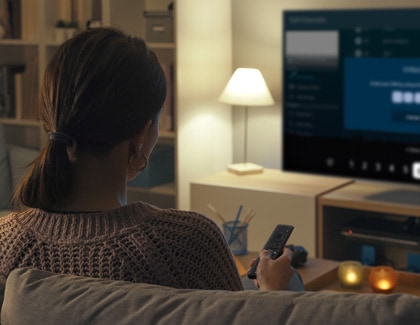
您可以在家長設定的選單中輕鬆為您的三星智能電視或顯示器進行設定。
請注意:
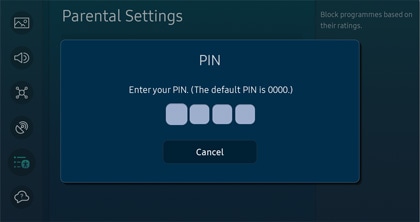
- 您需要先輸入電視 PIN 碼(預設 PIN 碼為 0000),方可開啟家長設定。如有需要,您亦可更改 PIN 碼。
- 法國和意大利的預設 PIN 碼是 1111。
1
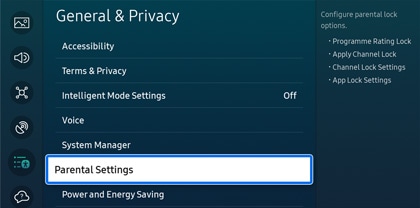
在電視或顯示器上打開「設定」(Settings),然後選擇「所有設定」(All Settings),然後點擊「一般與私隱」(General & Privacy),再選擇「家長設定」(Parental Settings)。
![Close-up view of a TV menu highlighting 'Parental Settings' under the 'General & Privacy' section, featuring options like accessibility, system manager, and power saving settings.]()
2
在頻道鎖定設定功能中輸入 PIN 碼,然後進行設定。設定後將會根據電視節目的評級,防止兒童觀看特定節目。
![PIN entry screen in the Parental Settings menu on a Samsung Smart TV, displaying empty fields and a default PIN note.]()
3
根據孩子的年齡,選擇適合的節目評級。
![Parental Settings menu on a Samsung Smart TV showing options for program rating and channel locks, with numerical ratings selectable.]()
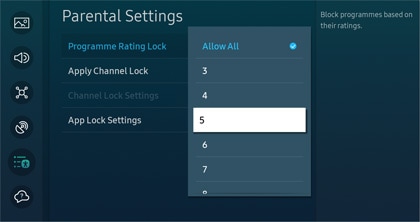
注意:只會提供適合所設定的年齡或以下的節目,您的服務供應商將負責提供節目的評
4
使用「頻道鎖定」(Apply Channel Lock),然後輸入 PIN 碼確認。
![Parental Settings menu on a Samsung Smart TV with 'Apply Channel Lock' toggle switched on, indicating active channel restrictions.]()
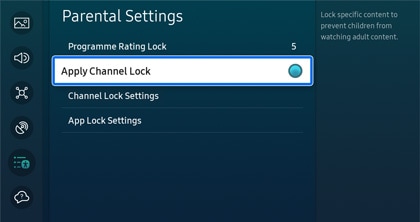
注意:此設定將鎖定特定頻道,防止兒童接觸成人內容。根據產品型號,電視是否支援此功能或有所不同。
5
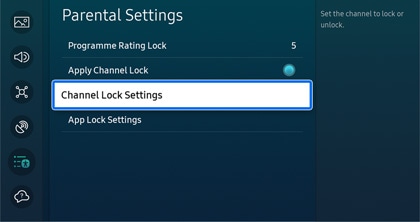
選擇「頻道鎖定設定」(Channel Lock Settings)。
![Highlighted 'Channel Lock Settings' option in the Parental Settings menu of a Samsung Smart TV, indicating configurable channel restrictions.]()
6
編輯需要鎖上的頻道。
7
選擇後點擊「鎖定」(Lock),輸入 PIN 碼進行確認。
![TV channel list on a Samsung Smart TV with an option to lock individual channels, highlighted on 'Lock' for the Epic Movie Channel.]()
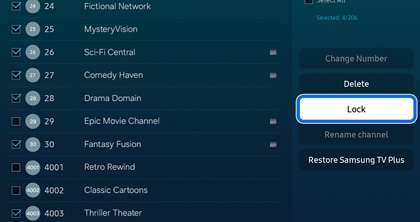
注意:在螢幕右側選擇解鎖並輸入您的 PIN 碼來解開鎖上的頻道。
8
若要增加鎖定頻道,重複此步驟。
9
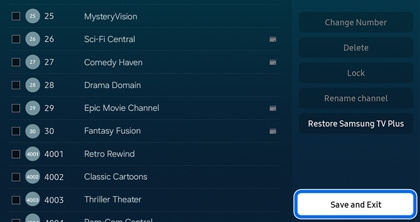
完成後點擊「儲存並離開」(Save and Exit),返回家長設定功能表。
![TV channel menu on a Samsung Smart TV showing options to edit channels, with 'Save and Exit' button highlighted to confirm changes.]()
10
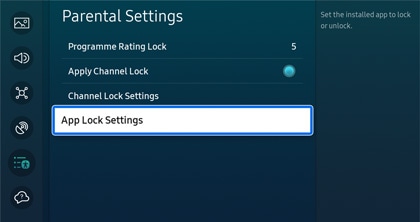
接下來進行「應用程式鎖定設定」(App Lock Settings)。
![Parental Settings menu on a Samsung Smart TV with 'App Lock Settings' selected, indicating options for app-specific restrictions.]()
11
選擇您想要鎖上的應用程式,然後在該應用程式下方選擇「鎖定」 (Lock),並輸入 PIN 碼進行確認。
![Screen displaying app management settings on a Samsung Smart TV with options to lock or delete apps like Netflix and YouTube highlighted.]()
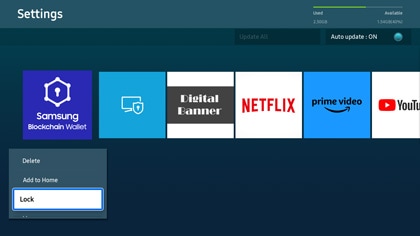
注意:在應用程式下方選擇解鎖並輸入 PIN 碼來解開應用程式的鎖定。
12
若要增加鎖定的應用程式,重複此步驟。
更改家長設定 PIN 碼
![A stylish living room with a Samsung Smart TV displaying the 'Change PIN' screen, asking for a new PIN entry.]()
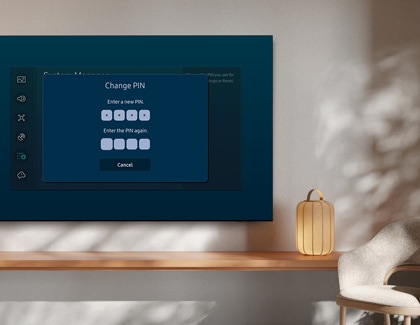
雖然電視有預設 PIN 碼﹐但您可以進行更改。
1
在電視或顯示器上打開「設定」(Settings),選擇「所有設定」(All Settings)。
2
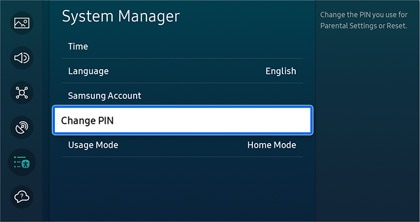
選擇「一般與私隱」(General & Privacy),然後選擇「系統管理員」(System Manager),再點擊「更改密碼」(Change PIN)。
![System Manager menu on a Samsung Smart TV with 'Change PIN' option highlighted for adjusting Parental Settings or reset.]()
3
輸入現時的 PIN 碼及新的 PIN 碼。
4
再一次輸入新的 PIN 碼。
5
已更改PIN 碼。
注意:
- 電視的預設 PIN 碼是0000。
- 法國和意大利的預設 PIN 碼是1111。
感謝您提供意見讓我們了解您的需要
請回答所有問題。
RC01_Static Content : This text is only displayed on the editor page