Galaxy TabPro S: How do I use Screen Mirroring?
Important Note: The information on this page is for Hong Kong products only. Models, sequences or settings will vary depending on location and/or where the product had been purchased. To be redirected to your local support page please click here.
You can enjoy different types of contents saved on your device on a bigger screen connected wirelessly.
✧ For some TV models, press Source on your remote and choose Screen Mirroring.
(Note: If there is no “screen mirroring” among the options, your TV model may not have this function. If the feature is not supported on the device you want to connect to, you can use auxiliary devices like an AllShare Cast dongle or HomeSync.)

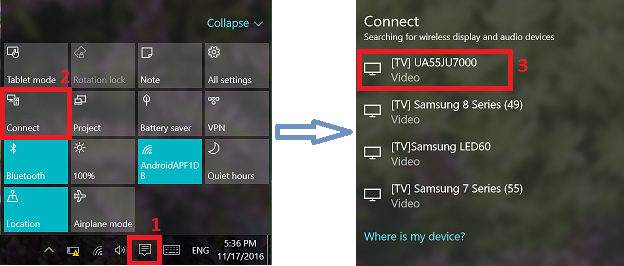
A list of visible nearby devices appears.
The same screen that appears on the device also appears on the TV.

If the above information does not match what your product is showing, you may check the User Manual for your product. If you are unable to solve the problem, please contact us for further assistance.
Thank you for your feedback!
Please answer all questions.
RC01_Static Content : This text is only displayed on the editor page