How do I Connect Samsung Gear 360 and Mobile device via WiFi Direct?
Important Note: The information on this page is for Hong Kong products only. Models, sequences or settings will vary depending on location and/or where the product had been purchased. To be redirected to your local support page please click here.
When the Gear 360 and your mobile device are remotely connected via Wi-Fi Direct, you can record videos and take photos from the mobile device. You can also view the videos and images captured by the Gear 360 on the mobile device.
Launch the Samsung Gear 360 app on your mobile device, and then tap 360 Camera to activate the remote viewfinder. Or, tap 360 Gallery to access the videos and images saved in the Gear 360.
Your mobile device’s Wi-Fi feature will be activated automatically and the Gear 360 is connected with your mobile device via Wi-Fi Direct.
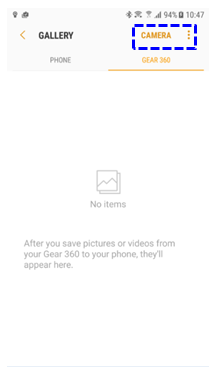
When the Gear 360 and your mobile device are remotely connected via Wi-Fi Direct, you can record videos and take photos from the mobile device. You can also view the videos and images captured by the Gear 360 on the mobile device.
Launch the Samsung Gear 360 app on your mobile device, and then tap 360 Camera to activate the remote viewfinder. Or, tap 360 Gallery to access the videos and images saved in the Gear 360.
Your mobile device’s Wi-Fi feature will be activated automatically and the Gear 360 is connected with your mobile device via Wi-Fi Direct.
Notices for using Wi-Fi
• Ensure that your Samsung Gear 360 and the other Bluetooth device are within the Bluetooth connection range (5 m).The distance may vary depending on the environment the devices are used in.
• Ensure that there are no obstacles between the Samsung Gear 360 and a connected device, including human bodies, walls, corners, or fences.
• If a mobile device connects to the Samsung Gear 360 via Wi-Fi Direct while it is connected to a Wi-Fi network, the mobile device’s screen may flicker due to the limited capability of the Wi-Fi network.
• Using a mobile device near other devices which are connected to the Wi-Fi network may affect the signal strength and cause the screen to flicker.
• The transfer time may take longer depending on the Wi-Fi connection status and file size.
If the above information does not match what your product is showing, you may check the User Manual for your product. If you are unable to solve the problem, please contact us for further assistance.
Thank you for your feedback!
Please answer all questions.
RC01_Static Content : This text is only displayed on the editor page