How do I take Motion photo in Galaxy S7 and S7 edge?
Important Note: The information on this page is for Hong Kong products only. Models, sequences or settings will vary depending on location and/or where the product had been purchased. To be redirected to your local support page please click here.
How do I take Motion photo?
l Please note that the answer below is a reference for customer and which may change in different software version, the Images are for reference only, all other products and services mentioned may belong to their respective trademark owners
Motion photo is set the device to take a video clip for a few seconds before tapping Camera icon.
This allows you to capture a moment you might have missed.
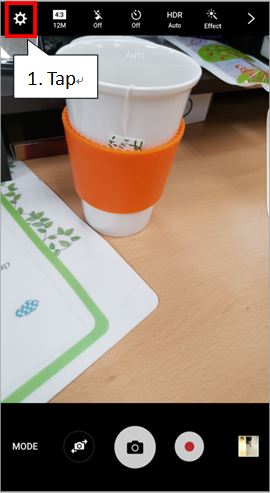
1. To set Motion photo, on the preview screen, tap Camera settings.
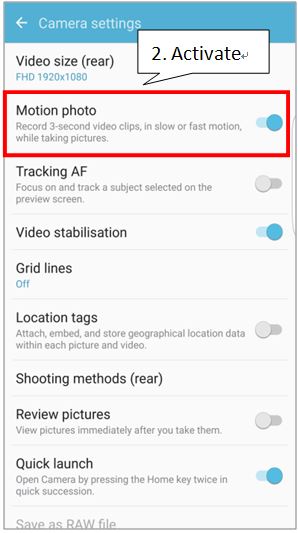
2. Tap the Motion photo switch to activate it.
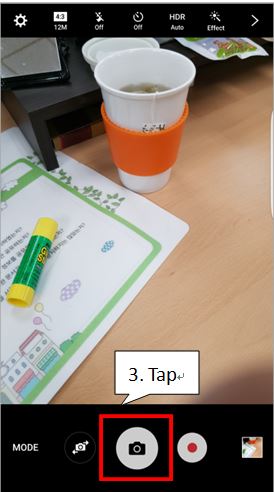
3. Tap Camera icon to take a photo.
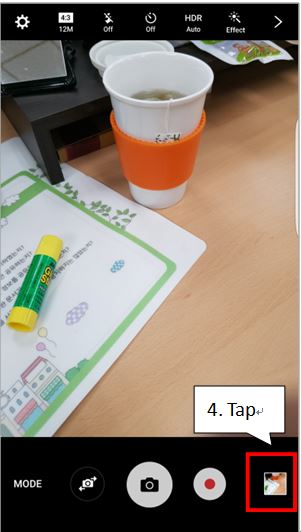
4. To view the video, tap the preview thumbnail.
5. Tap Motion photo icon.
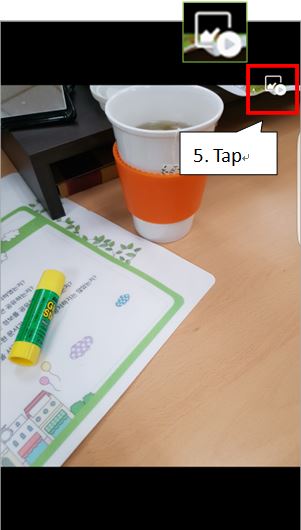
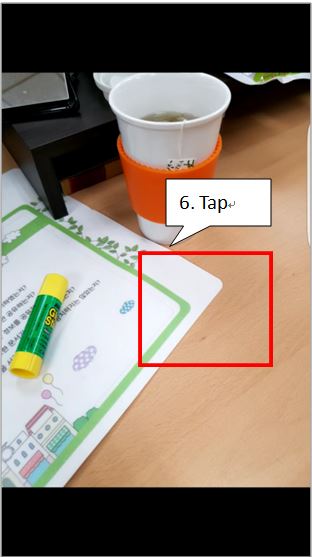
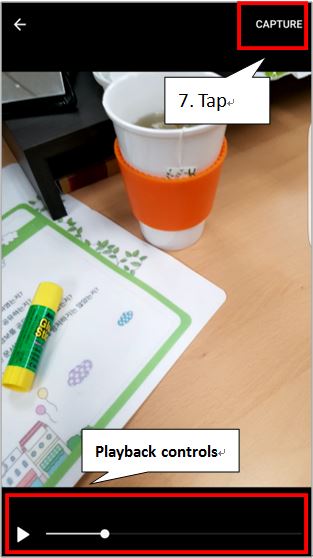
6. The device will play the video. If you tap the screen, Playback controls and Capture option will appear.
7. To capture an image while viewing the photo, tap CAPTURE.
If the above information does not match what your product is showing, you may check the User Manual for your product. If you are unable to solve the problem, please contact us for further assistance.
Thank you for your feedback!
Please answer all questions.
RC01_Static Content : This text is only displayed on the editor page