How to Transfer Data from my old Android device to my new Galaxy device using Wifi Direct?

Last Update date : Jan 20. 2026

Important Note: The information on this page is for Hong Kong products only. Models, sequences or settings will vary depending on location and/or where the product had been purchased. To be redirected to your local support page please click here.

We would like to introduce an easy and fast way to transfer data using our Smart Switch application from Android device to Galaxy device with Wifi Direct. You can check applicable Galaxy models in Samsung Galaxy Apps or the Google Play store.


Obtaining /Accessing Smart Switch


First, please download the Smart Switch Application on both your old and new devices.


You can download the Smart Switch Application from Samsung Galaxy Apps or the Google Play Store.

1 Search for "Smart Switch"
2 Click agree to the terms and conditions,
3 Install the Smart Switch application.
How to Transfer Data from my old Android device to my new Galaxy device using Wifi Direct?

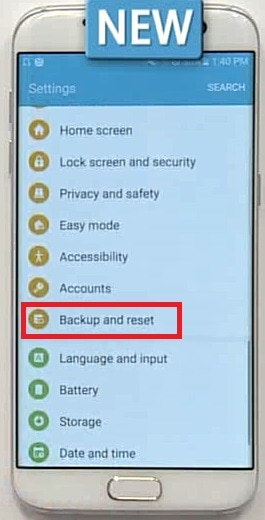
Please remember that Galaxy S7 and S7 Edge have Smart Switch function pre-loaded.
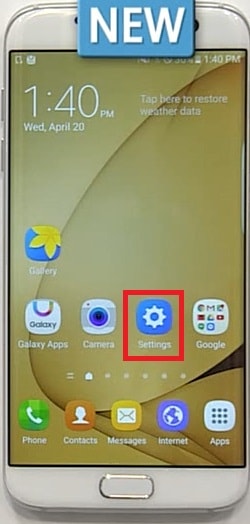
1 Go to the Settings
2 Backup and reset
3 Open Smart Switch
How to Transfer Data from my old Android device to my new Galaxy device using Wifi Direct?

Transfer Procedures


To transfer data with Smart Switch Application,

1 Click Smart Switch Icon in the old device.
2 Should the new device be Galaxy S7 edge, go to settings to activate smart switch function.

If your new device is not Galaxy S7 or S7 edge, please click Smart Switch Application icon.

How to Transfer Data from my old Android device to my new Galaxy device using Wifi Direct?
3 When you enter smart switch, you can see terms and conditions. Please click "agree", then you can see a screen to select type of Operating System (OS), such as iOS, Android, or Blackberry.
4 Select Android, and click "Start".
How to Transfer Data from my old Android device to my new Galaxy device using Wifi Direct?
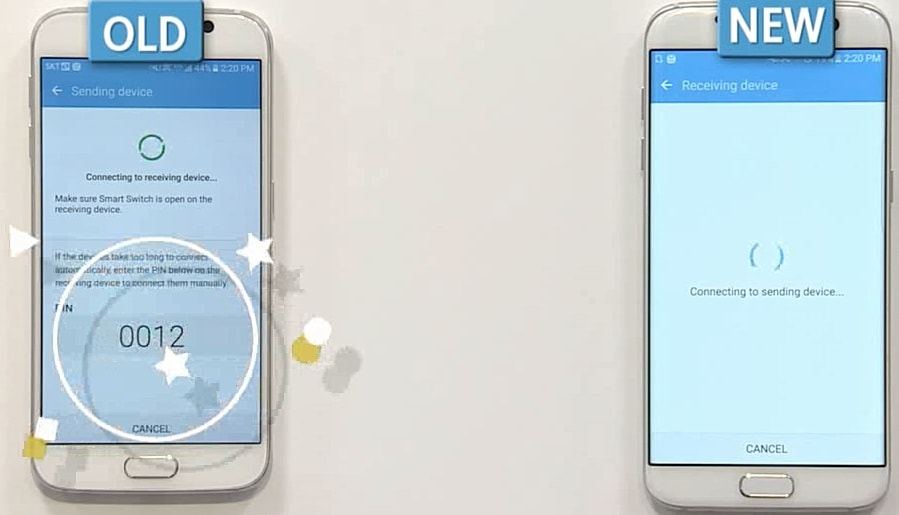
5 Select send or receive options in your old and new devices. Then, your devices should be connected.
How to Transfer Data from my old Android device to my new Galaxy device using Wifi Direct?

If the microphone is blocked or difficult to connect due to the noise around you, you can connect manually with the PIN number in your old device.
http://skp.samsungcsportal.com/upload/namo/FAQ/hk_en/20160524/images/000001/%E6%9C%AA%E5%91%BD%E5%90%8D12.jpg
6 After the two devices are connected, you can see the available data transfer options which you can import from the old one. You can click "All" or select specific items of data to transfer to new device.
http://skp.samsungcsportal.com/upload/namo/FAQ/hk_en/20160524/images/000001/%E6%9C%AA%E5%91%BD%E5%90%8D12.jpg
7 After selection, please click "SEND."
8 A pop-up is displayed asking if you would like to import data into your new device. Tap "RECEIVE" to allow your old device to start sending data to your new device.
http://skp.samsungcsportal.com/upload/namo/FAQ/hk_en/20160524/images/000001/%E6%9C%AA%E5%91%BD%E5%90%8D12.jpg
9 It may take some time to transfer data depending on the data volume you want to transfer. After quick data transfer, you can view all transferred data and volume of the data.
 How to Transfer Data from my old Android device to my new Galaxy device using Wifi Direct?

 With the Samsung Smart Switch, you can transfer all data including app usage history.

If the above information does not match what your product is showing, you may check the User Manual for your product. If you are unable to solve the problem, please contact us for further assistance.

Thank you for your feedback!

RC01_Static Content : This text is only displayed on the editor page