How to access data even if your Galaxy phone's touch screen is not available?

Step 1. Connect the USB adapter to your phone.
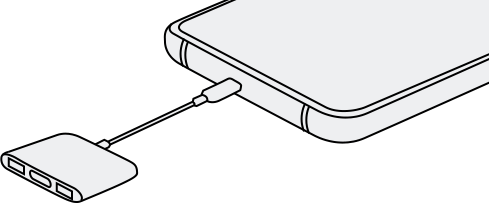
Step 2. Connect the USB of the mouse to the adapter.
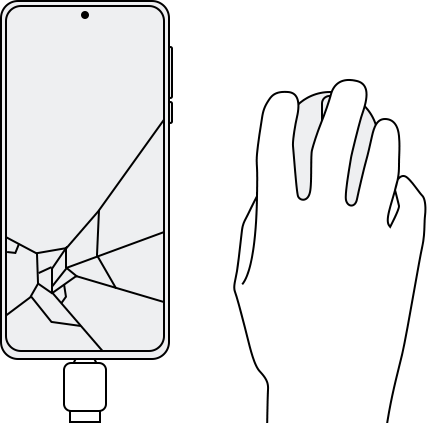
Step 3. After connecting, you can use the mouse. Use your mouse to back up the data you want.
Step 4. Now tha tyou're connected, a mouse pointer will appear on screen, and you can click your way through backing up your data with Smart Switch
Note:
- You can also connect a keyboard the same way, so you are able to enter your PIN or Password.
- To get back to the Home screen, use the right click on your mouse.
- An OTG (On The Go) adapter allows you to connect a full sized USB flash drive or USB A cable to your phone or tablet through the Micro USB or USB-C charging port.
Multiport Adapter
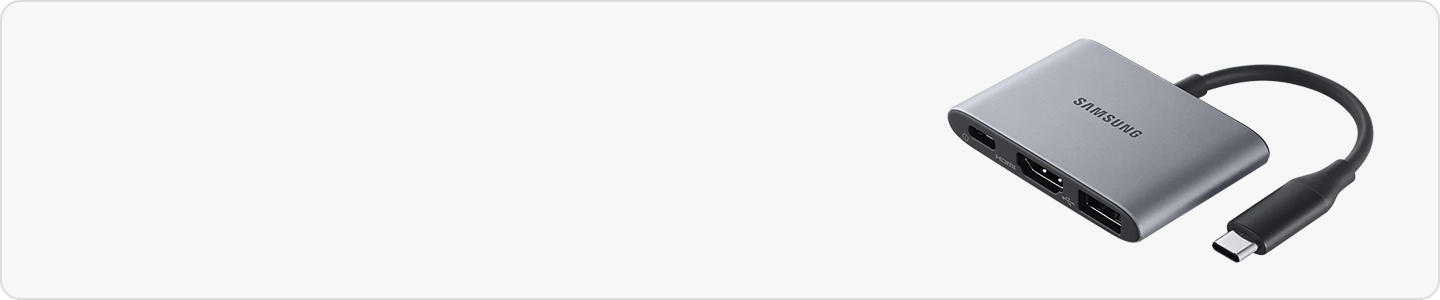
If your phone's screen is damaged and you can't see anything anymore, you can use your phone by connecting it to a TV or monitor using screen mirroring. You will need a multiport adapter and an HDMI cable to connect to your TV or a mouse.
In addition, your phone must be unlocked. If fingerprint recognition or face recognition does not work, you can go to the SmartThings Find site, log in with your Samsung account, and then unlock it. Follow the steps below to connect your phone to your TV.
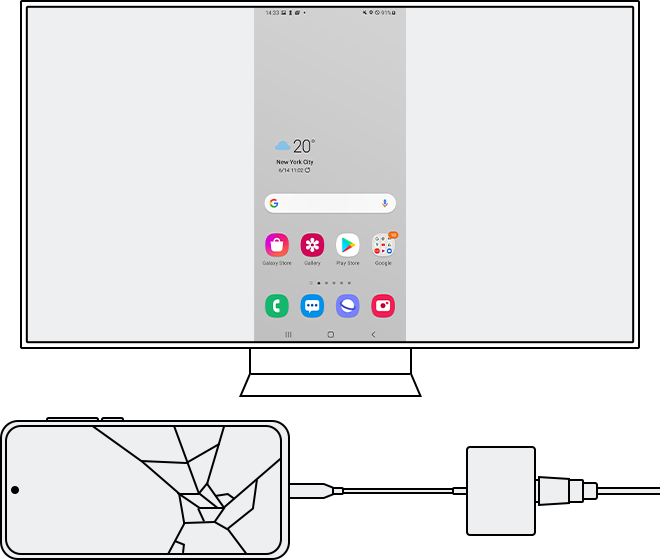
Step 1. Connect the adapter to your phone, then connect the HDMI cable to the adapter.
Step 2. Connect the other end of the HDMI cable to the HDMI port on your TV.
Step 3. After turning on the TV, select the input to which the mobile phone is connected via HDMI.
Step 4. Once connected, you can see your phone screen on the TV, change settings and make backups.
Note:
- If DeX mode is running, exit DeX mode and try again.
- There may be a short delay between motions on your phone and your TV.
- HDMI display output may not be supported depending on the model and device.
- If both the screen and touch do not work on your phone, use a multiport adapter to connect the TV and a mouse together.


Service centers


Locate the nearest Samsung service center to have your product checked.

Thank you for your feedback!
Please answer all questions.
Contact Info
WhatsApp
![WhatsApp]()
![WhatsApp]()


Monday to Sunday
8:00 a.m. a 12:00 a.m.
LiveChat
![LiveChat]()
![LiveChat]()


Monday to Sunday
8:00 a.m. a 12:00 a.m.
Online
Call
Costa Rica: 00-800-1-726-7864
Ecuador: 1-800-72-6786
El Salvador: 800-0726-7864
Guatemala: 1-800-299-0033
Call
Honduras: 800-2791-9111
Jamaica: 1-800-726-7864
Nicaragua: 001-800-5077267
Panama: 800-0101
Call
Puerto Rico: 1-800-682-3180
Trinidad and Tobago: 1-800-726-7864
Venezuela: 0-800-100-5303
Dominican Republic: 1-800-751-2676